


Tap to Pay on iPhone
Accept contactless payments right on your iPhone.
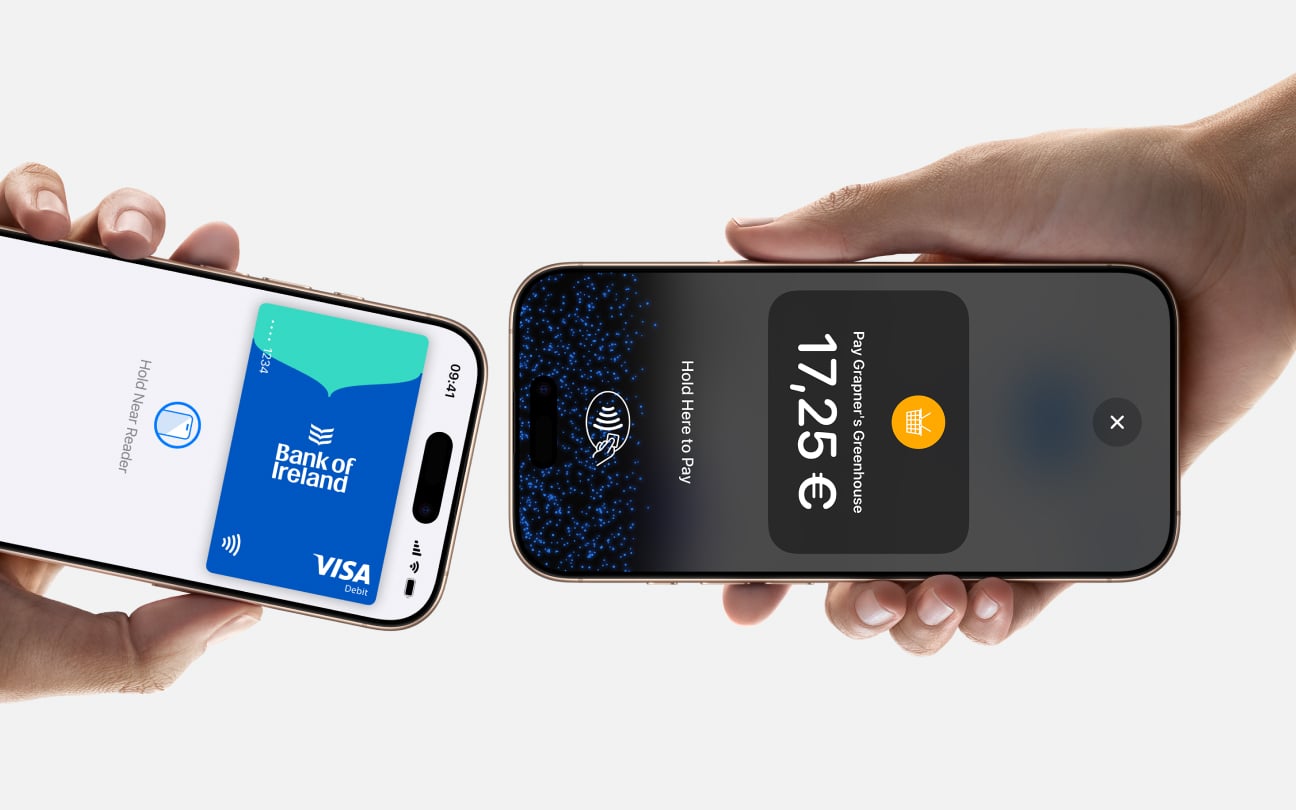
Tap to Pay on iPhone is now available with the Genius mobile pay app. That means anyone can accept all types of in-person, contactless payments — from physical debit and credit cards to Apple Pay and other digital wallets. It’s easy and secure, and no additional hardware is needed. All you need is iPhone.
Expand where you do business
With Tap to Pay on iPhone, anyone can do business in more places simply by accepting contactless payments on iPhone. The checkout experience makes it easy to reach new customers, take payments on the go, and explore new ways of working to help reduce queues. All you need is iPhone and the Genius mobile pay app.
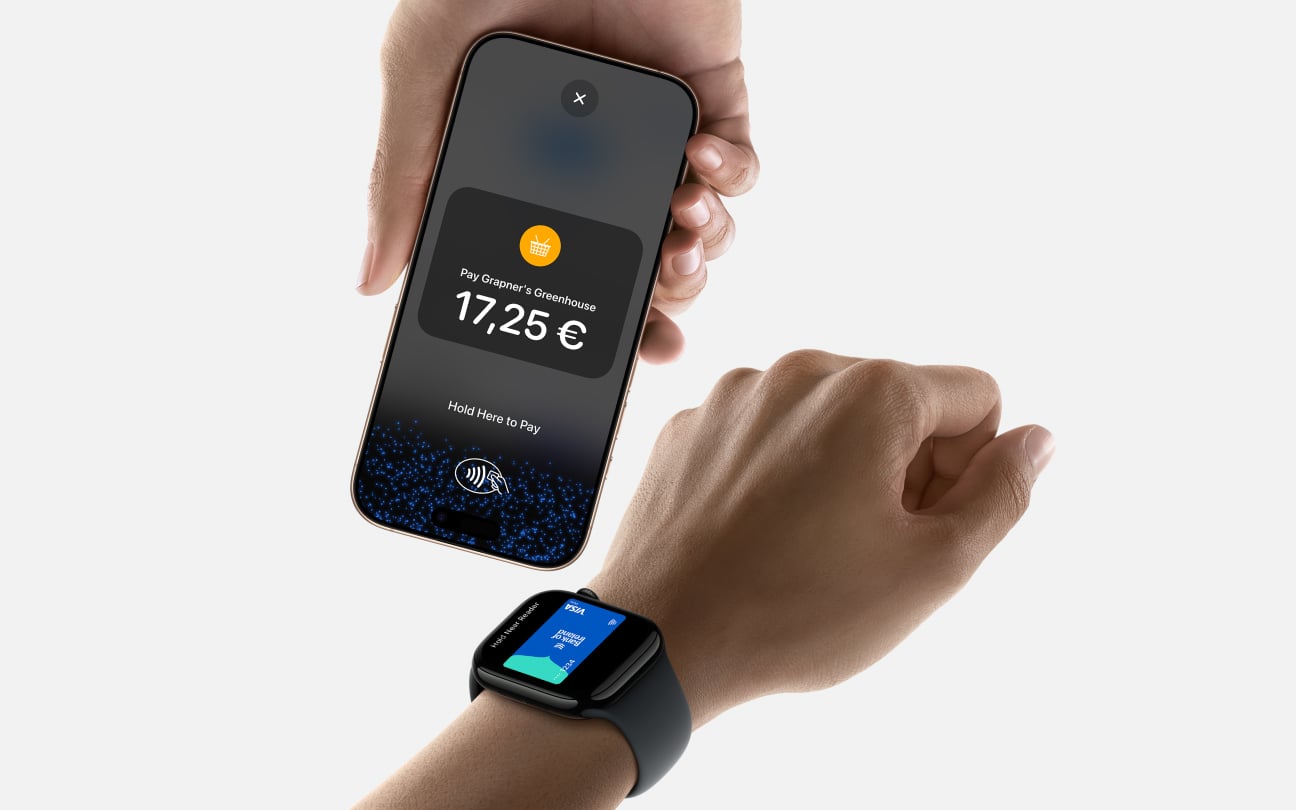

No additional hardware
There’s no need to invest in and manage card readers and terminals, so Tap to Pay on iPhone makes it simple to start a new business or expand a current one. With just an iPhone and the Genius mobile pay app, anyone can accept contactless payments. It’s that simple.
Privacy and security built in
Tap to Pay on iPhone uses the built-in security and privacy features of iPhone. When a payment is processed, Apple doesn't store card numbers on Apple servers - helping to protect your business and customer data.* So merchants and customers can rest assured that their data stays theirs.
PIN transaction protection
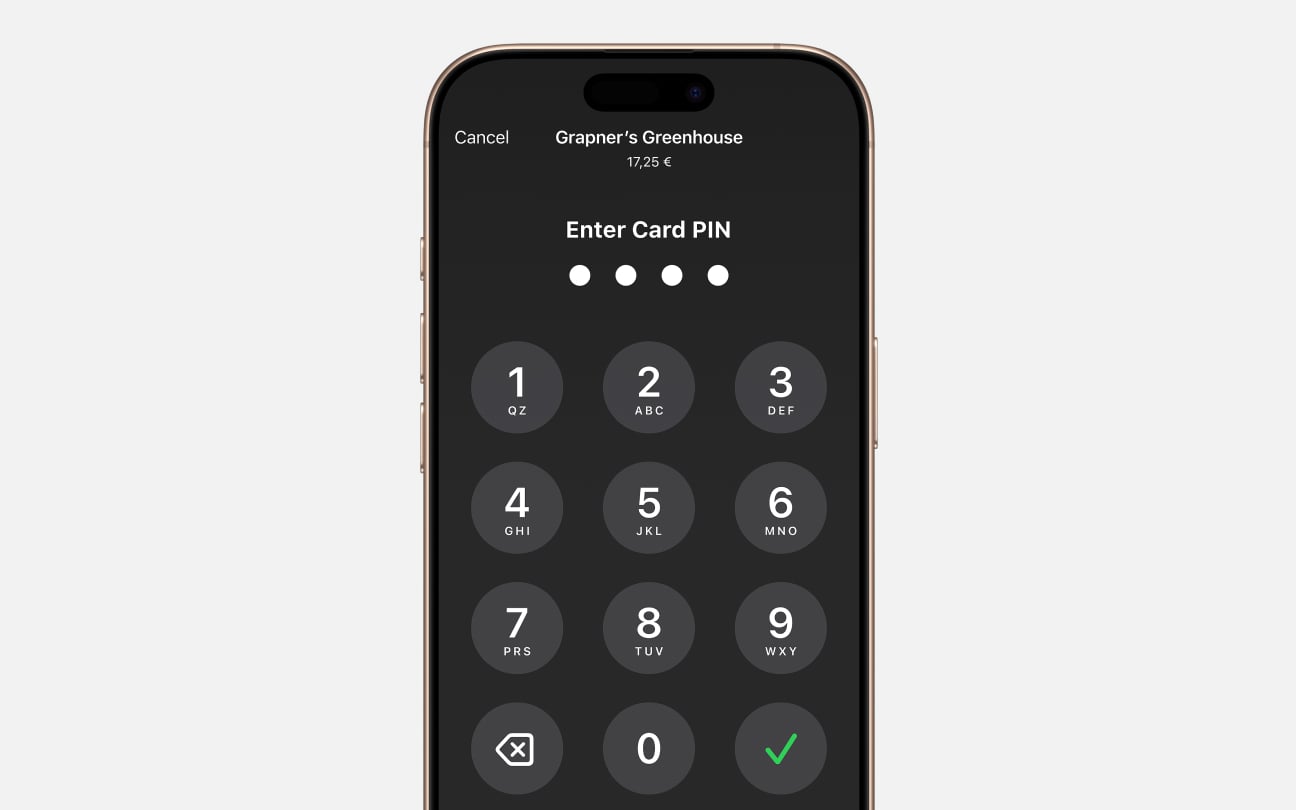
Transactions that require PIN entry will automatically prompt a PIN entry screen when using Tap to Pay on iPhone. When that screen appears, Tap to Pay on iPhone is designed to prevent apps in the background from reading sensors that could give away any part of the PIN. When a payment is processed, Tap to Pay on iPhone is designed to prevent all photo, video, screenshot and screen-recording features on the merchant’s iPhone from capturing a customer’s card number or PIN information.
Accessible for everyone
For customers needing visual or other assistance, accessibility options are built into Tap to Pay on iPhone to help them securely enter PIN information. Audible instructions guide customers to draw their PIN on the screen or tap the screen to indicate each digit — tapping once for 1, twice for 2 and so on. To submit their PIN, they simply swipe right with two fingers.

It's easy to get started
Once you are signed up as a merchant, you can get up and running in 3 easy steps

Download the Genius mobile pay app

Complete sign-up information

Accept in-person, contactless payments — directly on iPhone